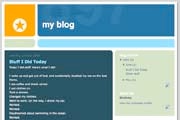
"Blog" is an abbreviated version of "weblog," which is a term used to describe web sites that maintain an ongoing chronicle of information. A blog is a frequently updated, personal website featuring diary-type commentary and links to articles on other Web sites. Blogs range from the personal to the political, and can focus on one narrow subject or a whole range of subjects.
Many blogs focus on a particular topic, such as web design, home staging, sports, or mobile technology. Some are more eclectic, presenting links to all types of other sites. And others are more like personal journals, presenting the author's daily life and thoughts.
Generally speaking (although there are exceptions), blogs tend to have a few things in common:
- A main content area with articles listed chronologically, newest on top. Often, the articles are organized into categories.
- An archive of older articles.
- A way for people to leave comments about the articles.
- A list of links to other related sites, sometimes called a "blogroll".
- One or more "feeds" like RSS, Atom or RDF files.
Some blogs may have additional features beyond these.
The Blog Content
Content is the raison d'être for any web site. Retail sites feature a catalog of products. University sites contain information about their campuses, curriculum, and faculty. News sites show the latest news stories. For a personal blog, you might have a bunch of observations, or reviews. Without some sort of updated content, there is little reason to visit a web site more than once.
On a blog, the content consists of articles (also sometimes called "posts" or "entries") that the author(s) writes. Yes, some blogs have multiple authors, each writing his/her own articles. Typically, blog authors compose their articles in a web-based interface, built into the blogging system itself. Some blogging systems also support the ability to use stand-alone "weblog client" software, which allows authors to write articles offline and upload them at a later time.
Comments
Want an interactive website? Wouldn't it be nice if the readers of a website could leave comments, tips or impressions about the site or a specific article? With blogs, they can! Posting comments is one of the most exciting features of blogs.
Most blogs have a method to allow visitors to leave comments. There are also nifty ways for authors of other blogs to leave comments without even visiting the blog! Called "pingbacks" or "trackbacks", they can inform other bloggers whenever they cite an article from another site in their own articles. All this ensures that online conversations can be maintained painlessly among various site users and websites.
The Difference Between a Blog and CMS?
Software that provides a method of managing your website is commonly called a CMS or "Content Management System". Many blogging software programs are considered a specific type of CMS. They provide the features required to create and maintain a blog, and can make publishing on the internet as simple as writing an article, giving it a title, and organizing it under (one or more) categories. While some CMS programs offer vast and sophisticated features, a basic blogging tool provides an interface where you can work in an easy and, to some degree, intuitive manner while it handles the logistics involved in making your composition presentable and publicly available. In other words, you get to focus on what you want to write, and the blogging tool takes care of the rest of the site management.
WordPress is one such advanced blogging tool and it provides a rich set of features. Through its Administration Panels, you can set options for the behavior and presentation of your weblog. Via these Administration Panels, you can easily compose a blog post, push a button, and be published on the internet, instantly! WordPress goes to great pains to see that your blog posts look good, the text looks beautiful, and the html code it generates conforms to web standards.
If you're just starting out, read Getting Started with WordPress, which contains information on how to get WordPress set up quickly and effectively, as well as information on performing basic tasks within WordPress, like creating new posts or editing existing ones.
Things Bloggers Need to Know
In addition to understanding how your specific blogging software works, such as WordPress, there are some terms and concepts you need to know.
Archives
A blog is also a good way to keep track of articles on a site. A lot of blogs feature an archive based on dates (like a monthly or yearly archive). The front page of a blog may feature a calendar of dates linked to daily archives. Archives can also be based on categories featuring all the articles related to a specific category.
It does not stop there; you can also archive your posts by author or alphabetically. The possibilities are endless. This ability to organize and present articles in a composed fashion is much of what makes blogging a popular personal publishing tool.
Feeds
A Feed is a function of special software that allows "Feedreaders" to access a site automatically looking for new content and then post updates about that new content to another site. This provides a way for users to keep up with the latest and hottest information posted on different blogging sites. Some Feeds include RSS (alternately defined as "Rich Site Summary" or "Really Simple Syndication"), Atom or RDF files. Dave Shea, author of the web design weblog Mezzoblue has written a comprehensive summary of feeds.
Blogrolls
A blogroll is a list, sometimes categorized, of links to webpages the author of a blog finds worthwhile or interesting. The links in a blogroll are usually to other blogs with similar interests. The blogroll is often in a "sidebar" on the page or featured as a dedicated separate web page. BlogRolling and blo.gs are two websites that provide some interesting functions or help related to blogrolls. These sites provide methods for users to maintain these rolls effortlessly and integrate them into weblogs. WordPress has a built-in Link Manager so users do not have to depend on a third party for creating and managing their blogroll.
Syndication
A feed is a machine readable (usually XML) content publication that is updated regularly. Many weblogs publish a feed (usually RSS, but also possibly Atom and RDF and so on, as described above). There are tools out there that call themselves "feedreaders". What they do is they keep checking specified blogs to see if they have been updated, and when the blogs are updated, they display the new post, and a link to it, with an excerpt (or the whole contents) of the post. Each feed contains items that are published over time. When checking a feed, the feedreader is actually looking for new items. New items are automatically discovered and downloaded for you to read. Just so you don't have to visit all the blogs you are interested in. All you have to do with these feedreaders is to add the link to the RSS feed of all the blogs you are interested in. The feedreader will then inform you when any of the blogs have new posts in them. Most blogs have these "Syndication" feeds available for the readers to use.
Managing Comments
One of the most exciting features of blogging tools are the comments. This highly interactive feature allows users to comment upon article posts and link to your posts and comment on and recommend them. These are known as trackbacks and pingbacks . We'll also discuss how to moderate and manage comments and how to deal with the annoying trend in "comment spam", when unwanted comments are posted to your blog.
Trackbacks
Trackbacks were originally developed by SixApart, creators of the MovableType blog package. SixApart has a good introduction to trackbacks:
In a nutshell, TrackBack was designed to provide a method of notification between websites: it is a method of person A saying to person B, "This is something you may be interested in." To do that, person A sends a TrackBack ping to person B.
A better explanation is this:
- Person A writes something on their blog.
- Person B wants to comment on Person A's blog, but wants her own readers to see what she had to say, and be able to comment on her own blog
- Person B posts on her own blog and sends a trackback to Person A's blog
- Person A's blog receives the trackback, and displays it as a comment to the original post. This comment contains a link to Person B's post
The idea here is that more people are introduced to the conversation (both Person A's and Person B's readers can follow links to the other's post), and that there is a level of authenticity to the trackback comments because they originated from another weblog. Unfortunately, there is no actual verification performed on the incoming trackback, and indeed they can even be faked.
Most trackbacks send to Person A only a small portion (called an "excerpt") of what Person B had to say. This is meant to act as a "teaser", letting Person A (and his readers) see some of what Person B had to say, and encouraging them all to click over to Person B's site to read the rest (and possibly comment).
Person B's trackback to Person A's blog generally gets posted along with all the comments. This means that Person A can edit the contents of the trackback on his own server, which means that the whole idea of "authenticity" isn't really solved. (Note: Person A can only edit the contents of the trackback on his own site. He cannot edit the post on Person B's site that sent the trackback.)
SixApart has published an official trackback specification.
Pingbacks
Pingbacks were designed to solve some of the problems that people saw with trackbacks. The official pingback documentation makes pingbacks sound an awful lot like trackbacks:
For example, Yvonne writes an interesting article on her Web log. Kathleen reads Yvonne's article and comments about it, linking back to Yvonne's original post. Using pingback, Kathleen's software can automatically notify Yvonne that her post has been linked to, and Yvonne's software can then include this information on her site.
There are three significant differences between pingbacks and trackbacks, though.
- Pingbacks and trackbacks use drastically different communication technologies (XML-RPC and HTTP POST, respectively).
- Pingbacks support auto-discovery where the software automatically finds out the links in a post, and automatically tries to pingback those URLs, while trackbacks must be done manually by entering the trackback URL that the trackback should be sent to.
- Pingbacks do not send any content.
The best way to think about pingbacks is as remote comments:
- Person A posts something on his blog.
- Person B posts on her own blog, linking to Person A's post. This automatically sends a pingback to Person A when both have pingback enabled blogs.
- Person A's blog receives the pingback, then automatically goes to Person B's post to confirm that the pingback did, in fact, originate there.
The pingback is generally displayed on Person A's blog as simply a link to Person B's post. In this way, all editorial control over posts rests exclusively with the individual authors (unlike the trackback excerpt, which can be edited by the trackback recipient). The automatic verification process introduces a level of authenticity, making it harder to fake a pingback.
Some feel that trackbacks are superior because readers of Person A's blog can at least see some of what Person B has to say, and then decide if they want to read more (and therefore click over to Person B's blog). Others feel that pingbacks are superior because they create a verifiable connection between posts.
Verifying Pingbacks and Trackbacks
Comments on blogs are often criticized as lacking authority, since anyone can post anything using any name they like: there's no verification process to ensure that the person is who they claim to be. Trackbacks and Pingbacks both aim to provide some verification to blog commenting.
Comment Moderation
Comment Moderation is a feature which allows the website owner and author to monitor and control the comments on the different article posts, and can help in tackling comment spam. It lets you moderate comments, & you can delete unwanted comments, approve cool comments and make other decisions about the comments.
Comment Spam
Comment Spam refers to useless comments (or trackbacks, or pingbacks) to posts on a blog. These are often irrelevant to the context value of the post. They can contain one or more links to other websites or domains. Spammers use Comment Spam as a medium to get higher page rank for their domains in Google, so that they can sell those domains at a higher price sometime in future or to obtain a high ranking in search results for an existing website.
Spammers are relentless; because there can be substantial money involved, they work hard at their "job." They even build automated tools (robots) to rapidly submit their spam to the same or multiple weblogs. Many webloggers, especially beginners, sometimes feel overwhelmed by Comment Spam.
There are solutions, though, to avoiding Comment Spam. WordPress includes many tools for combating Comment Spam. With a little up front effort, Comment Spam can be manageable, and certainly no reason to give up weblogging.
Pretty Permalinks
Permalinks are the permanent URLs to your individual weblog posts, as well as categories and other lists of weblog postings. A permalink is what another weblogger will use to refer to your article (or section), or how you might send a link to your story in an e-mail message. Because others may link to your individual postings, the URL to that article shouldn't change. Permalinks are intended to be permanent (valid for a long time).
"Pretty" Permalinks is the idea that URLs are frequently visible to the people who click them, and should therefore be crafted in such a way that they make sense, and not be filled with incomprehensible parameters. The best Permalinks are "hackable," meaning a user might modify the link text in their browser to navigate to another section or listing of the weblog. For example, this is how the default Permalink to a story might look in a default WordPress installation:
/index.php?p=423
How is a user to know what "p" represents? Where did the number 423 come from?
In contrast, here is a well-structured, "Pretty" Permalink which could link to the same article, once the installation is configured to modify permalinks:
/archives/2003/05/23/my-cheese-sandwich/
One can easily guess that the Permalink includes the date of the posting, and the title, just by looking at the URL. One might also guess that hacking the URL to be /archives/2003/05/ would get a list of all the postings from May of 2003. Pretty (cool). For more information on possible Permalink patterns in WordPress, see Using Permalinks.
Blog by email
Some blogging tools offer the ability to email your posts directly to your blog, all without direct interaction through the blogging tool interface. WordPress offers this cool feature. Using email, you can now send in your post content to a pre-determined email address & voila! Your post is published!
Post Slugs
If you're using Pretty Permalinks, the Post Slug is the title of your article post within the link. The blogging tool software may simplify or truncate your title into a more appropriate form for using as a link. A title such as "I'll Make A Wish" might be truncated to "ill-make-a-wish". In WordPress, you can change the Post Slug to something else, like "make-a-wish", which sounds better than a wish made when sick.
Excerpt
Excerpts are condensed summaries of your blog posts, with blogging tools being able to handle these in various ways. In WordPress, Excerpts can be specifically written to summarize the post, or generated automatically by using the first few paragraphs of a post or using the post up to a specific point, assigned by you.
Plugins
Plugins are cool bits of programming scripts that add additional functionality to your blog. These are often features which either enhance already available features or add them to your site.
WordPress offers simple and easy ways of adding Plugins to your blog. From the Administraton Panel, there is a Plugin Page. Once you have uploaded a Plugin to your WordPress plugin directory, activate it from the Plugins Management SubPanel, and sit back and watch your Plugin work. Not all Plugins are so easily installed, but WordPress Plugin authors and developers make the process as easy as possible.